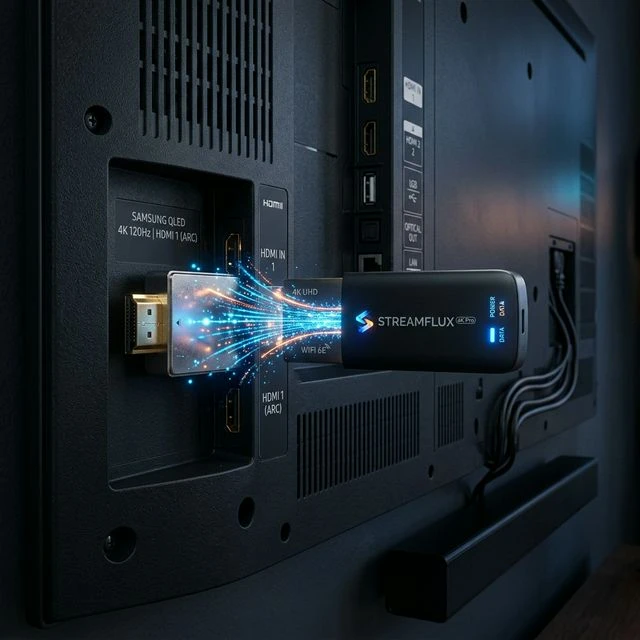
How to Optimize Your TV Stick for 4K Streaming: Stop Buffering Forever
The TV Stick: A Powerful Tool When Optimized
The Amazon TV Stick is one of the most popular streaming devices in the world, but out of the box, it's not always optimized for high-bitrate 4K live sports. If you're experiencing buffering or lag, a few simple tweaks can dramatically improve performance.
1. Clear Cache and Data Regularly
Over time, apps accumulate cache data that bogs down the TV Stick's limited memory. Go to Settings > Applications > Manage Installed Applications, select your streaming app, and click "Clear Cache". Doing this once a week keeps things running smoothly.
2. Use a Wired Ethernet Connection
Wi-Fi is convenient, but it's susceptible to interference from walls, microwaves, and neighboring networks. For live 4K sports, stability is key. Invest in an USB Ethernet Adapter for your TV Stick to guarantee a rock-solid, buffer-free connection.
3. Disable Background Processes
Your TV Stick runs numerous background processes that consume RAM and bandwidth. Turn off features like "Data Monitoring" and "App Usage Data" in the Preferences menu. Also, disable auto-playing videos on the home screen to free up resources.
4. Upgrade to a Premium Streaming Service
Sometimes the issue isn't your device; it's the server you're connecting to. As we discuss in our article on The Future of Live Sports Broadcasting, premium services use advanced anti-freeze technology and global CDNs to ensure streams never drop, regardless of your hardware.
Conclusion
By keeping your device clean, using a wired connection, and pairing it with a high-quality streaming provider, your TV Stick can easily handle the demands of modern 4K broadcasting.
Ready to Upgrade Your Setup?
Join thousands of UK viewers enjoying premium, buffer-free live TV.